
This article describes automatic TLS certificate renewal in Digital Access via ACME.
ACME Certificate Renewal overview
Smart ID Digital Access (DA) can automatically obtain and renew its own TLS/SSL server certificates from an ACME‑compatible Certificate Authority (CA) such as Let's Encrypt, ZeroSSL, or Google Cloud CA. ACME (Automatic Certificate Management Environment) removes the manual work of requesting, uploading, and renewing certificates before they expire.
What it does
-
You register one or more ACME endpoints (each a connection to a CA, with its own ACME account).
-
You turn on ACME renewal for a specific server certificate and point it at an endpoint.
-
A background renewal scheduler checks ACME‑enabled certificates and, when one approaches expiry, automatically requests a fresh certificate, installs it, and (optionally) publishes it to the Access Points without manual steps.
Everything is configured in the DA administration interface under Manage System → Certificates.
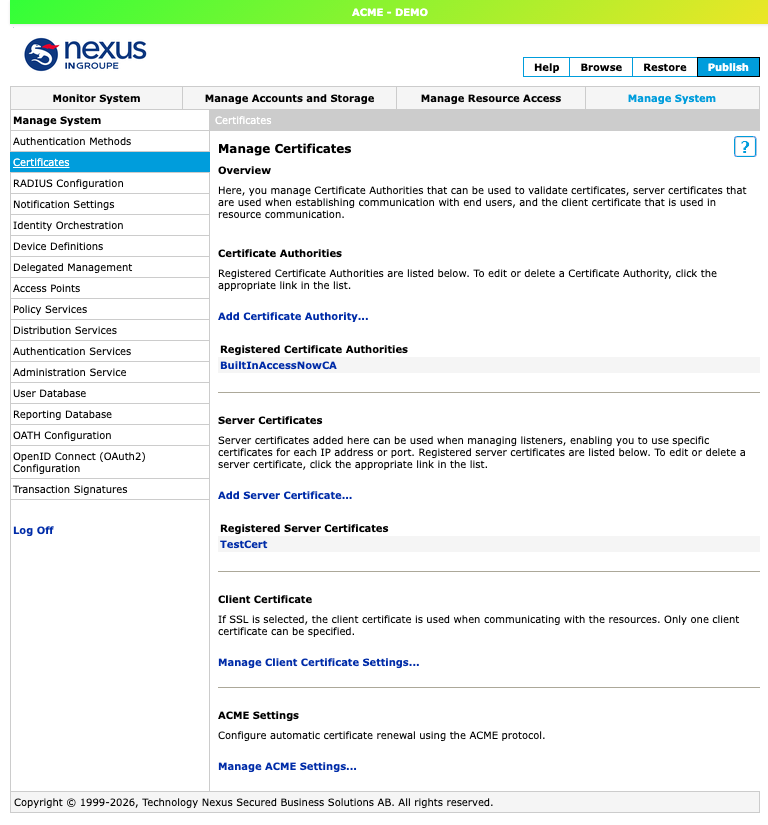
How it works (the big picture)
DA acts as the ACME client. The only externally visible parts are the Access Points, which briefly help prove domain ownership to the CA.
                 ┌─────────────────── Digital Access ───────────────────┐
   ACME CA       │                                                       │
 (Let's Encrypt) │   Administration service            Access Point(s)  │
      │          │   - ACME account & orders           - own 443 / 80    │
      │  1. order │   - renewal scheduler               - forward the CA's│
      │<──────────┤   - challenge responders            challenge traffic │
      │           │                                                       │
      │  2. validate domain (challenge)                                   │
      │───────────────────────────────────────────────►  443 / 80 / DNS  │
      │                                                                   │
      │  3. issue certificate                                            │
      │──────────►  installed + (auto) published to Access Points        │
                 └───────────────────────────────────────────────────────┘
-
The renewal scheduler (or an on‑demand request) creates an ACME order with the CA for the certificate's domain.
-
The CA validates domain ownership via a challenge. DA supports three challenge types (see section “Challenge types” below); the Access Points forward the CA's validation traffic to the administration service, or validation is done purely via DNS.
-
The CA issues the certificate. DA installs it and, if Automatic Publish is on, pushes it to the Access Points so they immediately serve the new cert.
The administration service holds the ACME account key and runs the challenge responders; the Access Points only forward challenge traffic on ports 443/80.
The three building blocks
|
Block |
Where |
What |
|---|---|---|
|
ACME endpoint |
Manage System → Certificates → Manage ACME Settings |
A connection to a CA (directory URL, account, allowed challenge types, EAB). |
|
Server certificate |
Manage System → Certificates → Server Certificates |
The certificate to auto‑renew. Turn on ACME renewal enabled and pick an endpoint. |
|
AP DNS name |
Manage Resource Access → Global Resource Settings → DNS Name Pool |
Alternatively, set an Access Point DNS name's Server Certificate to Request certificate (ACME). |
|
Global renewal settings |
Manage System → Certificates → Manage ACME Settings |
Enable automatic renewal, auto‑publish, threshold, interval, and challenge ports. |
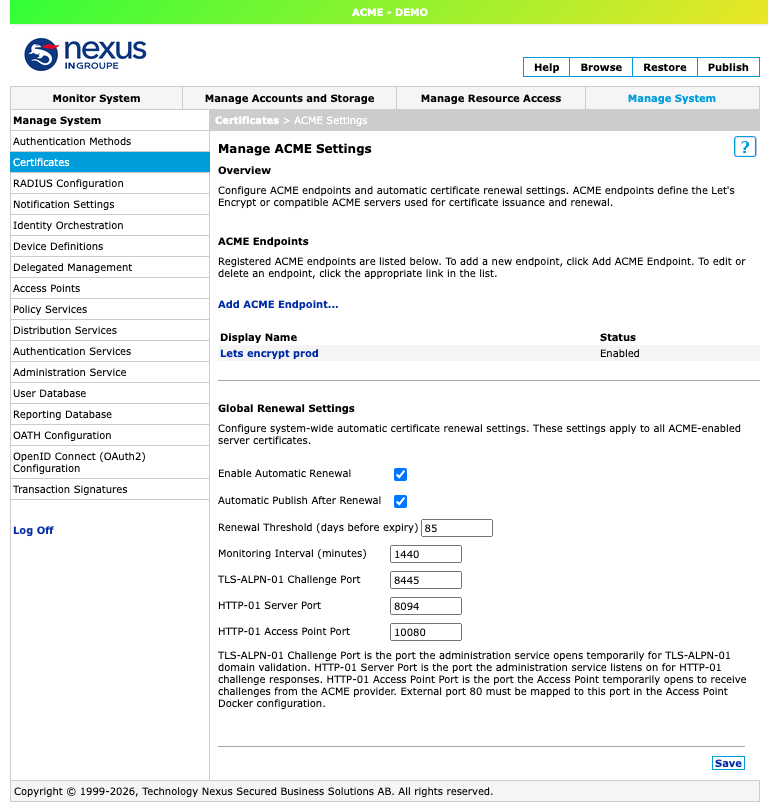
Typical setup order
-
Import the CA's root/intermediate certificates and make sure DNS points at your Access Points.
-
Configure an ACME endpoint for your CA.
-
Enable ACME renewal on the server certificate(s) you want auto‑renewed, or request a certificate per DNS name from Global Resource Settings.
-
Turn on automatic renewal (it is off by default) and review the threshold/interval/ports.
-
Publish. From then on, renewal is automatic.
Prerequisites
Before ACME certificate management can work, make sure the following sections are in place. These are the most common reasons a first ACME setup fails.
CA root & intermediate certificates
DA must trust the certificate chain the ACME CA returns. Add each provider's root and intermediate CA certificates under:
Manage Global Resource Settings → Certificates → CA Certificates
|
ACME provider |
Required CA certificate(s) |
|---|---|
|
Let's Encrypt (Production) |
ISRG Root X1 |
|
Let's Encrypt (Staging) |
Fake LE Root X1 (staging root) |
|
ZeroSSL |
USERTrust RSA Certification Authority (Sectigo root) |
Without the correct CA certificates, DA cannot validate the chain returned by the ACME server and certificate issuance/renewal will fail.
TIP: When testing, point your endpoint at the CA's staging directory first (e.g. Let's Encrypt staging) to avoid hitting production rate limits, and import the staging root. Switch to production once the flow works.
DNS
The domain names you request certificates for must resolve to your Access Point(s) so the CA can reach them during validation:
-
For TLS‑ALPN‑01 and HTTP‑01, the CA connects to the domain on port 443/80. Thesee must reach the Access Points from the internet.
-
For DNS‑PERSIST‑01, no inbound connection is needed, but you must be able to create DNS TXT records for the domain (see Challenge types).
The domain that gets renewed is taken from the server certificate's subject (CN/SAN).
Ports (and Docker mapping)
ACME domain validation uses the ports below. Defaults usually work; change them only if they conflict with other services. Full detail is in section “Global Renewal Settings”.
|
Purpose |
Default |
Notes |
|---|---|---|
|
TLS‑ALPN‑01 challenge (admin service) |
8445 |
Temporary; forwarded from AP port 443. |
|
HTTP‑01 server (admin service) |
8094 |
Temporary; forwarded from the AP HTTP‑01 port. |
|
HTTP‑01 Access Point listen port |
10080 |
The CA always uses external port 80 — Docker must map it: |
Docker note: The Access Point listens on the internal HTTP‑01 port (default 10080) so it can run unprivileged. External port 80 must be mapped to it in the Access Point's Docker configuration (e.g. -p 80:10080). Only needed if you use the HTTP‑01 challenge.
An ACME account (created for you)
You do not need to pre‑create an ACME account. When you save an ACME endpoint for the first time, DA registers an account with the CA automatically and stores the account key (encrypted). For providers that require External Account Binding (ZeroSSL, Google Cloud CA) you will need EAB credentials from the provider. See section “Configure an ACME endpoint” below for details.
Configure an ACME Endpoint
An ACME endpoint represents a connection to one Certificate Authority. You can register several (e.g. one for Let's Encrypt, one for ZeroSSL); each keeps its own ACME account.
Go to Manage System → Certificates → Manage ACME Settings and click Add ACME Endpoint…. To change one later, click its name in the endpoints list to open Edit ACME Endpoint.
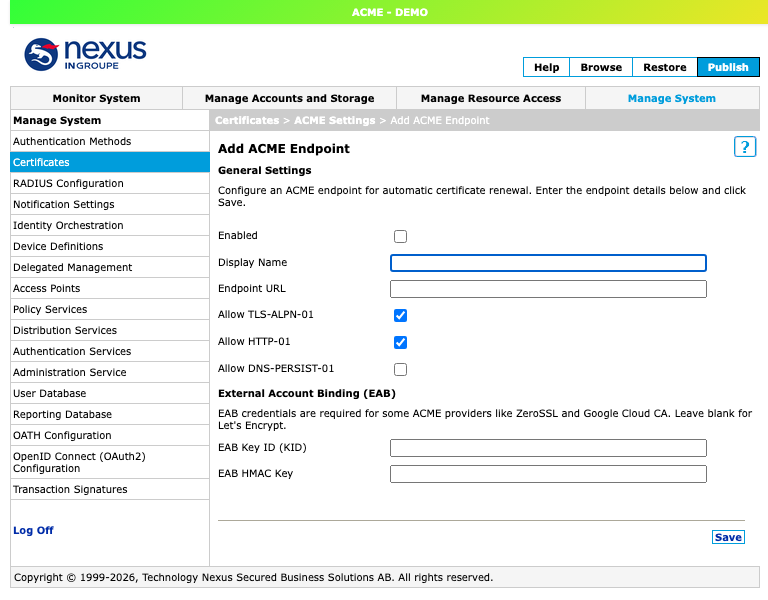
General settings
|
Field |
Description |
|---|---|
|
Display Name |
A descriptive name (e.g. "Let's Encrypt Production"). Used to identify the endpoint in the admin UI. Must be unique. |
|
Endpoint URL |
The CA's ACME directory URL. Must be HTTPS. |
|
Enabled |
When checked, the endpoint is active and can be used for issuance/renewal. Uncheck to disable it without deleting. |
|
Allow TLS‑ALPN‑01 |
Allow the TLS‑ALPN‑01 challenge (preferred). |
|
Allow HTTP‑01 |
Allow HTTP‑01 as a fallback (needs port 80). |
|
Allow DNS‑PERSIST‑01 |
Allow DNS‑based validation, the only type that supports wildcard certificates. |
Common directory URLs:
|
Provider |
Endpoint URL |
|---|---|
|
Let's Encrypt Production |
|
|
Let's Encrypt Staging |
|
|
ZeroSSL |
|
The Enpoint URL is validated: it must use HTTPS and resolve to a real, non‑internal host (loopback/link‑local addresses are rejected for security).
External Account Binding (EAB)
Some providers (ZeroSSL, Google Cloud CA) require External Account Binding, which links the ACME account DA creates to your existing account at the provider.
Leave both fields blank for Let's Encrypt.
|
Field |
Description |
|---|---|
|
EAB Key ID (KID) |
The key identifier the provider gives you when you create an account on their site. |
|
EAB HMAC Key |
The HMAC key from the provider. Stored encrypted in the database. |
What happens on save
When you save an endpoint for the first time, DA registers an ACME account with the CA and stores the account key (encrypted, shared across the cluster). After that, the Edit ACME Endpoint page shows a DNS‑PERSIST‑01 section:
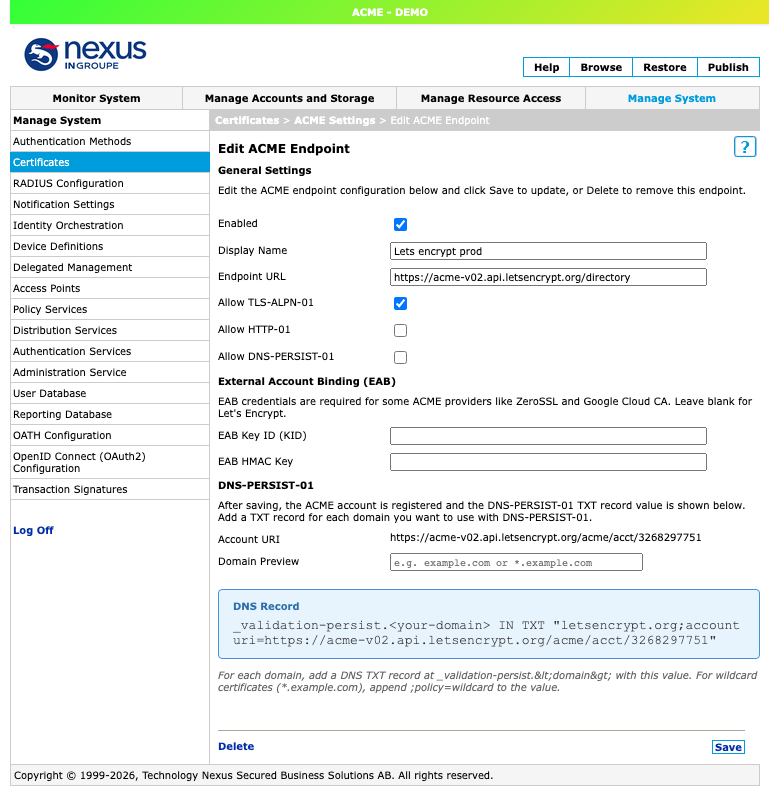
|
Field |
Description |
|---|---|
|
Account URI |
The unique URL of your ACME account at the CA (e.g. |
|
Domain Preview |
Type a domain (e.g. |
|
DNS Record |
The ready‑to‑copy |
Use the DNS‑PERSIST‑01 section only if you enabled that challenge type. See section “ Challenge types” (DNS‑PERSIST‑01).
Enable ACME Renewal on a Server Certificate
ACME renewal is turned on per server certificate. Once enabled and pointed at an endpoint, that certificate is picked up by the renewal scheduler.
Go to Manage System → Certificates, and under Server Certificates click the certificate you want to auto‑renew (or Add Server Certificate… to create
one).
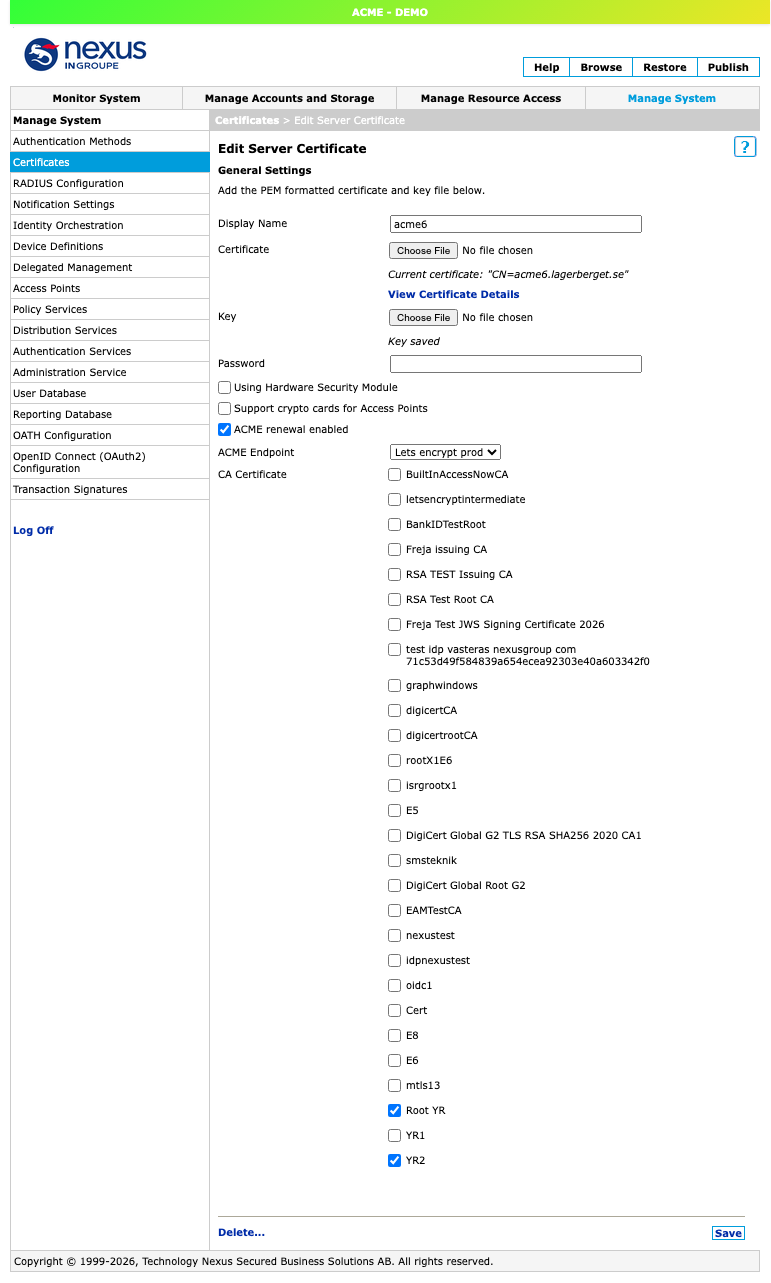
The ACME fields
|
Field |
Description |
|---|---|
|
ACME renewal enabled |
Check to have this certificate managed/renewed via ACME. |
|
ACME Endpoint |
The endpoint (CA) to use for this certificate. Required when ACME renewal is enabled. |
The domain to request is taken from the certificate itself (its CN / SAN). The certificate must contain a valid domain name; a certificate with no usable CN/SAN cannot be renewed via ACME.
When adding a brand‑new certificate for ACME, provide a certificate whose subject is the domain you want (or a placeholder/self‑signed cert with the correct CN/SAN). ACME will then replace it with a CA‑issued certificate for that domain.
After enabling
-
Make sure the prerequisites are met (CA root imported, DNS resolves to the Access Points, ports/Docker mapping if using HTTP‑01).
-
Ensure automatic renewal is enabled globally (it is off by default). Otherwise nothing renews automatically.
-
Publish the configuration.
The certificate will then be renewed automatically when it comes within the configured renewal threshold of expiry, using the challenge type available for the endpoint.
Wildcard certificates (*.example.com) can only be issued via DNS‑PERSIST‑01. Enable that challenge type on the endpoint and create the required DNS TXT record first.
Request a Certificate per DNS Name
Besides enabling ACME on a server certificate, you can request/renew a certificate per Access Point DNS name directly on the DNS name that the Access Point serves. This is often the most convenient option, because the certificate's domain is exactly that DNS name.
Go to Manage Resource Access → Global Resource Settings → DNS Name Pool. The Registered DNS Names for Access Point are listed there. Click a DNS name to edit it (or Add DNS Name for Access Point… to create one).
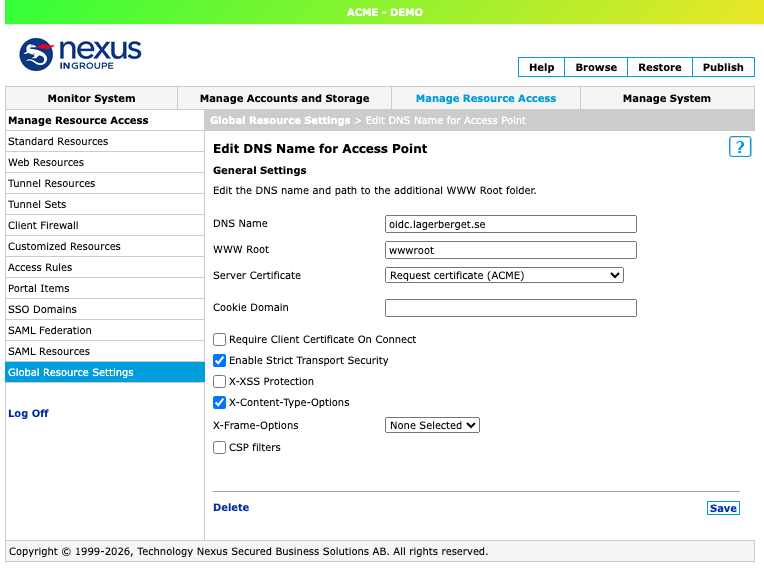
How it works
On the Edit / Add DNS Name for Access Point page, the Server Certificate drop-down lists:
-
None selected,
-
each registered server certificate, and
-
Request certificate (ACME).
Choosing Request certificate (ACME) tells Digital Access to automatically obtain and renew the TLS certificate for this DNS name via ACME, instead of manually associating an existing server certificate. The domain requested from the CA is the DNS Name itself.
This is picked up by the same renewal scheduler and uses the same endpoints and challenge types as certificate‑based ACME renewal.
Two ways to enable ACME; same engine.
-
Per server certificate: Manage System → Certificates → Server Certificates → ACME renewal enabled (domain from the cert's CN/SAN). See section
”Enable ACME on a Server Certificate”. -
Per Access Point DNS name (this article): Global Resource Settings → DNS Name Pool → Server Certificate = Request certificate (ACME) (domain = the DNS name).
Both rely on the configured endpoints and global renewal settings.
Steps
-
Make sure the prerequisites are met (an ACME endpoint is configured, the CA root is imported, DNS for the name resolves to the Access Point, and ports/Docker mapping are in place for HTTP‑01 if used).
-
Manage Resource Access → Global Resource Settings → DNS Name Pool.
-
Open the DNS name (or Add DNS Name for Access Point…).
-
Set Server Certificate to Request certificate (ACME).
-
Save, then Publish.
-
Ensure automatic renewal is enabled globally (off by default) so the certificate keeps renewing.
Wildcards. A DNS name using a wildcard (*.example.com) can only be issued via DNS‑PERSIST‑01. Enable that challenge type on the endpoint and create the required DNS TXT record first (see Challenge types).
Global Renewal Settings
These system‑wide settings control automatic renewal behavior and the ports used during domain validation. They apply to all ACME‑enabled server
certificates. Configure them at the bottom of Manage System → Certificates → Manage ACME Settings.
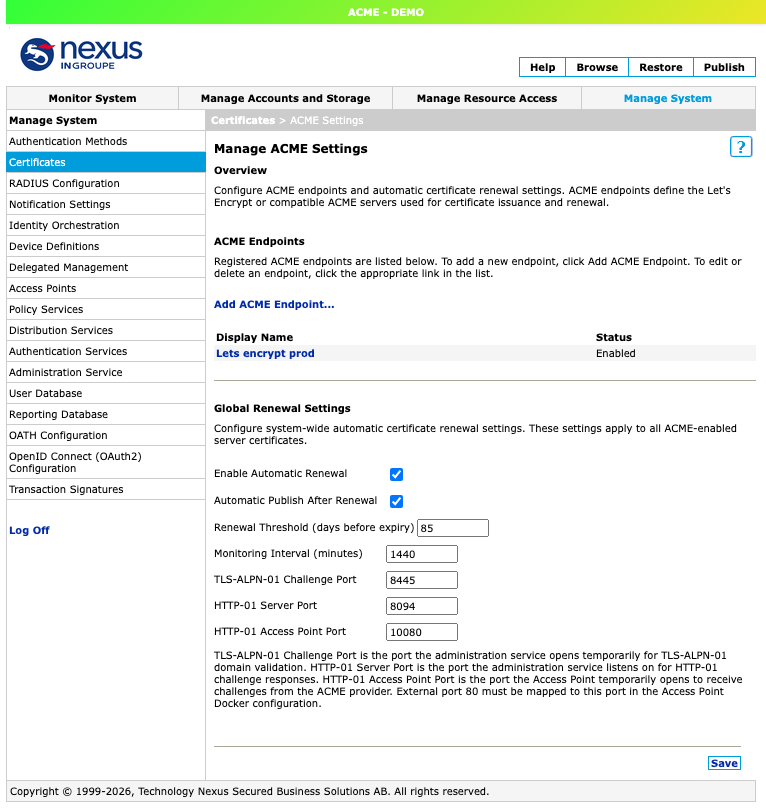
Renewal behavior
|
Setting |
Default |
Description |
|---|---|---|
|
Enable Automatic Renewal |
Off |
When on, the system periodically checks all ACME‑issued certificates and renews those approaching expiry. When off, no automatic renewals happen. Disabled by default, you must turn this on. |
|
Automatic Publish After Renewal |
On |
When on, renewed certificates are automatically published to all connected Access Points so they start using them immediately. When off, they are saved but not pushed until you publish manually (useful if you want to review first). Publishing happens only when at least one certificate was actually renewed. |
|
Renewal Threshold (days before expiry) |
30 |
Renew a certificate when it has this many days left. The field accepts 1–365; keep it below the certificate's validity or it will renew constantly. For Let's Encrypt (90‑day certs), 30 is recommended (≈60 days of use before renewal). (The in‑product help states 1–89; the input currently accepts up to 365.) |
|
Monitoring Interval (minutes) |
1440 |
How often the background scheduler checks for certificates needing renewal. Range 1–1440 (1 min–24 h). Daily (1440) is fine for most deployments. |
Challenge port settings
Each challenge type uses a port during validation. The
ports are only open briefly during a challenge and closed immediately after.
|
Setting |
Default |
Range |
Description |
|---|---|---|---|
|
TLS‑ALPN‑01 Challenge Port |
8445 |
1024–65535 |
Port the admin service opens temporarily for TLS‑ALPN‑01. The CA connects to the domain on 443; the Access Point forwards that connection here. |
|
HTTP‑01 Server Port |
8094 |
1024–65535 |
Port the admin service listens on for HTTP‑01 challenge tokens forwarded from Access Points. |
|
HTTP‑01 Access Point Port |
10080 |
80–65535 |
Internal port the Access Point opens to receive HTTP‑01 challenges. The CA always uses external port 80, so Docker must map it (e.g. |
DNS-PERSIST-01 needs no ports, validation is entirely via DNS TXT record lookups, with no inbound connection to the admin service or Access Points.
Tip: In most deployments the default ports work unchanged. Only modify them if they conflict with other services or your network requires specific ports. If you change the HTTP‑01 Access Point Port, update the Access Point's Docker port mapping to match.
After changing settings
Click Save, then Publish so the settings (and any port changes communicated to the Access Points) take effect.
Challenge types
When DA requests a certificate it must prove to the CA that it controls the domain. This proof is a challenge. DA supports three challenge types (see below), each suited to different deployments. You enable/disable each per endpoint with the Allow … checkboxes.
Selection and fallback
When DA needs a certificate, it picks a challenge automatically based on what is enabled for the endpoint and what the CA offers:
-
DNS‑PERSIST‑01 is tried first (if enabled and offered) — the only type
that supports wildcards. -
If that fails/unavailable, TLS‑ALPN‑01 is tried next (if enabled).
-
If that also fails, HTTP‑01 is used as a final fallback (if enabled).
If a challenge fails, DA creates a fresh ACME order before trying the next type (a failed challenge invalidates the authorization on the current order).
|
|
TLS‑ALPN‑01 |
HTTP‑01 |
DNS‑PERSIST‑01 |
|---|---|---|---|
|
External port |
443 |
80 |
none |
|
Access Point involved |
Yes (forwards 443) |
Yes (opens/forwards 80) |
No |
|
Wildcards |
No |
No |
Yes |
|
Best for |
Standard domains, 443 reachable |
443 not reachable but 80 is |
Wildcards, or ports 80/443 not reachable |
TLS‑ALPN‑01 (preferred)
Proves control by answering a TLS connection on port 443 with a self‑signed certificate containing the ACME token. Preferred because it only needs 443, already open for HTTPS.
How it works
-
DA creates a self‑signed certificate containing the ACME challenge token.
-
The admin service starts a temporary TLS server on the TLS‑ALPN‑01 Challenge Port (default 8445).
-
The CA connects to the domain on port 443. The Access Point forwards the TLS connection (identified by the
acme-tls/1ALPN protocol) to the admin service. -
The admin service responds with the challenge certificate; the CA verifies the token.
-
The temporary TLS server is stopped.
No wildcard support.
HTTP‑01 (fallback)
Proves control by serving a token file over plain HTTP on port 80. Requires coordination with the Access Points, which handle port 80.
How it works
-
The admin service tells all connected Access Points to open a temporary HTTP listener on the HTTP‑01 Access Point Port (default 10080; Docker maps external 80 → 10080).
-
The CA requests
<http://<domain>>/.well-known/acme-challenge/<token>on port 80. -
The Access Point forwards the request to the admin service on the HTTP‑01 Server Port (default 8094).
-
The admin service responds with the token; the CA verifies it.
-
The Access Points close the temporary listener.
No wildcard support.
Docker. The Access Point listens on the internal port (default 10080) so it runs unprivileged; external port 80 must be mapped to it, e.g. -p 80:10080.
DNS‑PERSIST‑01
A persistent, DNS‑based method. Instead of a real‑time challenge, a one‑time DNS TXT record authorizes your ACME account to issue certificates for the
domain indefinitely. This is the only type that supports wildcards.
How it works
-
When you save the endpoint, DA registers an ACME account and obtains an Account URI.
-
You create a DNS TXT record at
_validation-persist.<domain>containing the CA identifier and your account URI. -
When DA requests a certificate, the CA looks up this TXT record to confirm your account is authorized, no per‑request challenge needed.
Examples (use the Domain Preview field on the Edit ACME Endpoint page to generate the exact record):
Standard domain — portal.example.com:
_validation-persist.portal.example.com IN TXT "letsencrypt.org;accounturi=https://acme-v02.api.letsencrypt.org/acme/acct/123456789"
Wildcard — *.example.com (record at the base domain, add ;policy=wildcard):
_validation-persist.example.com IN TXT "letsencrypt.org;accounturi=https://acme-v02.api.letsencrypt.org/acme/acct/123456789;policy=wildcard"
Multiple domains each need their own TXT record, all using the same value from the endpoint's TXT Record Value field.
Important (wildcards): For *.example.com, the record goes at _validation-persist.example.com (not _validation-persist.*.example.com), and you must append ;policy=wildcard to the value.
Troubleshooting
Common issues when setting up or running ACME certificate renewal, and how to resolve them.
Endpoint / account
|
Error / message |
Resolution |
|---|---|
|
"ACME account registration failed. The URL … may be incorrect or unreachable." |
The Endpoint URL is wrong or the CA is not reachable. Verify the directory URL (see section “Configure an ACME endpoint”), that it is HTTPS, and that the admin service has outbound internet access to the CA. |
|
"Endpoint URL must use HTTPS scheme" |
The URL must start with |
|
"An ACME endpoint with the name … already exists" |
Display names must be unique; pick a different name. |
|
EAB errors with ZeroSSL / Google Cloud CA |
These providers require External Account Binding. Enter the EAB Key ID and EAB HMAC Key from the provider. Leave both blank for Let's Encrypt. |
Certificate request / renewal fails
|
Error / message |
What to check |
|---|---|
|
"Failed to request ACME certificate: …" |
The ACME order or challenge failed. Work through this checklist:
|
|
"Certificate does not contain a valid domain name (SAN/CN). ACME renewal requires a domain." |
The server certificate has no usable domain. Provide a certificate whose CN/SAN is the domain to renew (see Enable on a certificate). |
|
"An ACME endpoint must be selected when ACME renewal is enabled" |
Pick an endpoint in the server certificate's ACME Endpoint field. |
Nothing renews automatically
|
Issue |
What to check |
|---|---|
|
Automatic renewal is off. |
It is disabled by default. Turn on Enable Automatic Renewal under Global renewal settings. |
|
Not within the threshold yet. |
Renewal only triggers when a certificate is within the Renewal Threshold of expiry. |
|
Interval. |
The scheduler checks every Monitoring Interval minutes (default daily). Lower it temporarily if you need a faster check while testing. |
|
Certificate not ACME‑enabled. |
Confirm ACME renewal enabled is checked on the certificate and an endpoint is selected. |
New certificates not served by the Access Points
|
Issue |
What to check |
|---|---|
|
Automatic Publish is off. |
With it off, renewed certificates are stored but not pushed. Publish manually, or enable Automatic Publish After Renewal (Global renewal settings). |
Publish happens only when at least one certificate was actually renewed in a check cycle.
Settings will not save (validation errors)
|
Error / message |
What to check |
|---|---|
|
"Renewal threshold must be between 1 and 365 days" |
Enter a value in range; keep it below the certificate's validity. |
|
"Monitoring interval must be between 1 and 1440 minutes." |
Enter a value between 1 and 1440 minutes. |
|
"ALPN port must be between 1024 and 65535" "HTTP‑01 … port must be between 1024 and 65535" "Access Point listen port must be between 80 and 65535." |
Use ports in range and avoid conflicts with other services. |
"ACME certificate renewal is in progress"
|
Message |
What to do |
|---|---|
|
"ACME certificate renewal is in progress. Please do not publish or restore until complete" |
A renewal cycle is running. Wait for it to finish before publishing or restoring to avoid interfering with the in‑flight renewal. Refresh the page to check the status. |